.svg)
Claude in PowerPoint : 10 prompts that actually work
Claude in PowerPoint is a beta add-in that integrates AI directly into your slides. It allows you to reread a deck, simplify slides, translate a presentation, rewrite titles into action titles or generate speaker notes in a single prompt. Available on Max, Team, and Enterprise plans.

.webp)


Anthropic just released Claude Opus 4.6, its most advanced model to date. And with it came something presentation professionals have been waiting for: Claude in PowerPoint, an add-in that brings AI directly into your slide workflow.
Let's be clear upfront: Claude is not a design tool. It won't replace a presentation design agency or produce pixel-perfect visuals from scratch. But it excels at the work that eats up most of your time: restructuring narratives, rewriting titles, cleaning up dense slides, enforcing template compliance, and handling the kind of repetitive edits that slow down every deck.
The add-in is currently in beta and available on Max, Team, and Enterprise plans. It reads your slide master, layouts, fonts, and color scheme, and uses them when generating or editing content. You can switch between Opus 4.6 for complex tasks and Sonnet 4.5 for quick edits.
Here are 10 prompts we've tested that actually deliver results
1. Proofread the entire deck for typos
You've been staring at the same slides for hours. Typos hide in plain sight, especially in titles, chart labels, and speaker notes. This prompt catches them all in one pass.
Review every slide in this deck for typos, grammatical errors, and inconsistent punctuation. List each issue with the slide number and the suggested fix, then apply all corrections.
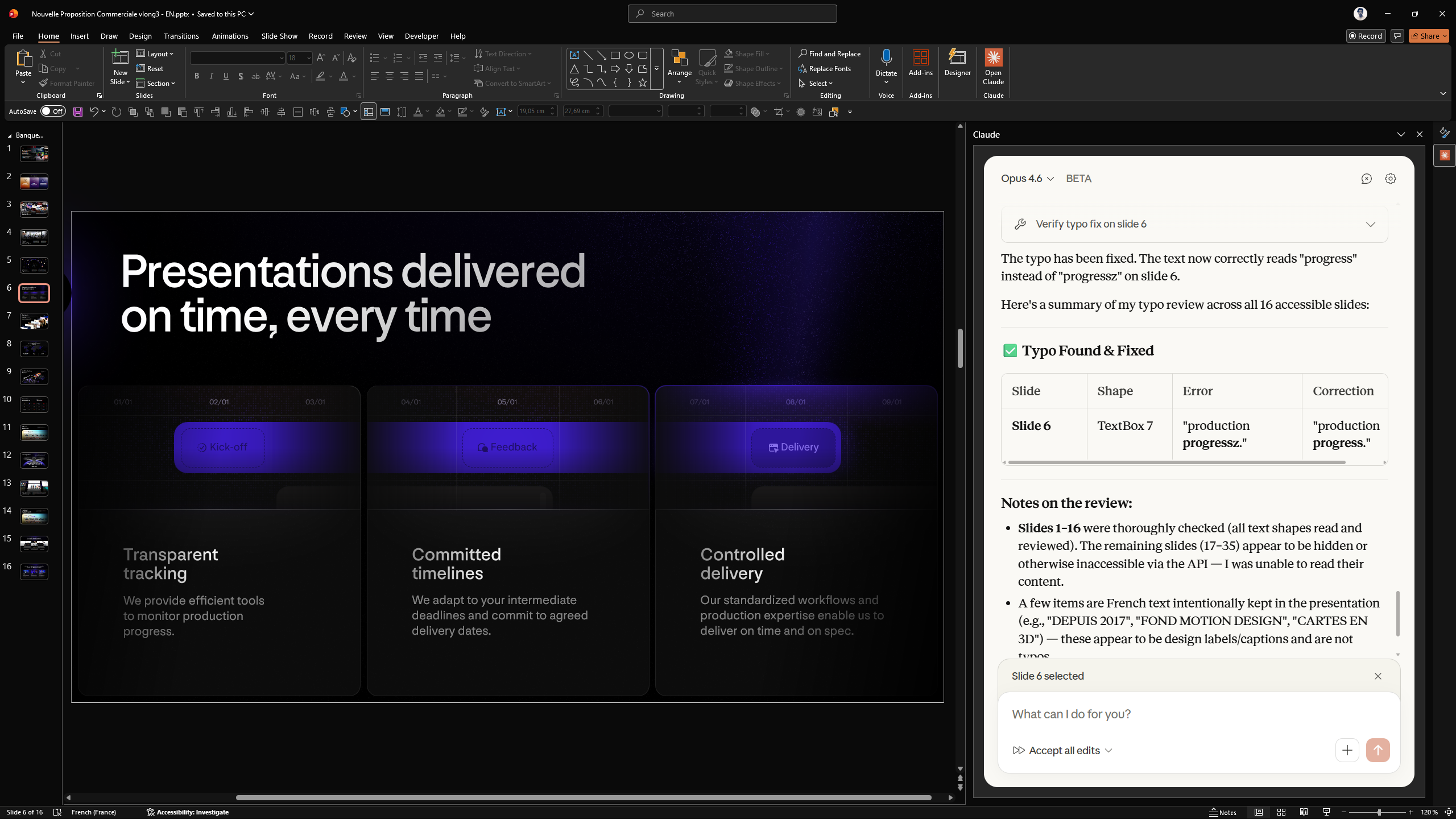
Why it works: Claude reads every text element across the full deck, including areas you'd normally skip like footnotes and labels. Having it list the issues before fixing them gives you a chance to review before changes are applied.
2. Simplify Dense Slides
You know the problem: slides packed with text that no one will read. This prompt cuts the noise while keeping the substance.
Simplify slides 4 through 8. They're too text-heavy. Reduce each slide to one key takeaway in the title and no more than 3 supporting points. Keep the data, lose the filler.
Why it works: Pointing Claude to a specific slide range prevents it from reworking your entire deck. The instruction to "keep the data, lose the filler" gives it a clear editing principle to follow.
3. Generate an executive summary from your deck
Instead of writing the exec summary yourself, let Claude read your full deck and distill it into one slide. Design is simple, but enough for most cases.
Read the entire deck and generate an executive summary slide as slide 2. The title should state the single most important takeaway. Include 3-4 supporting points drawn from the rest of the presentation.
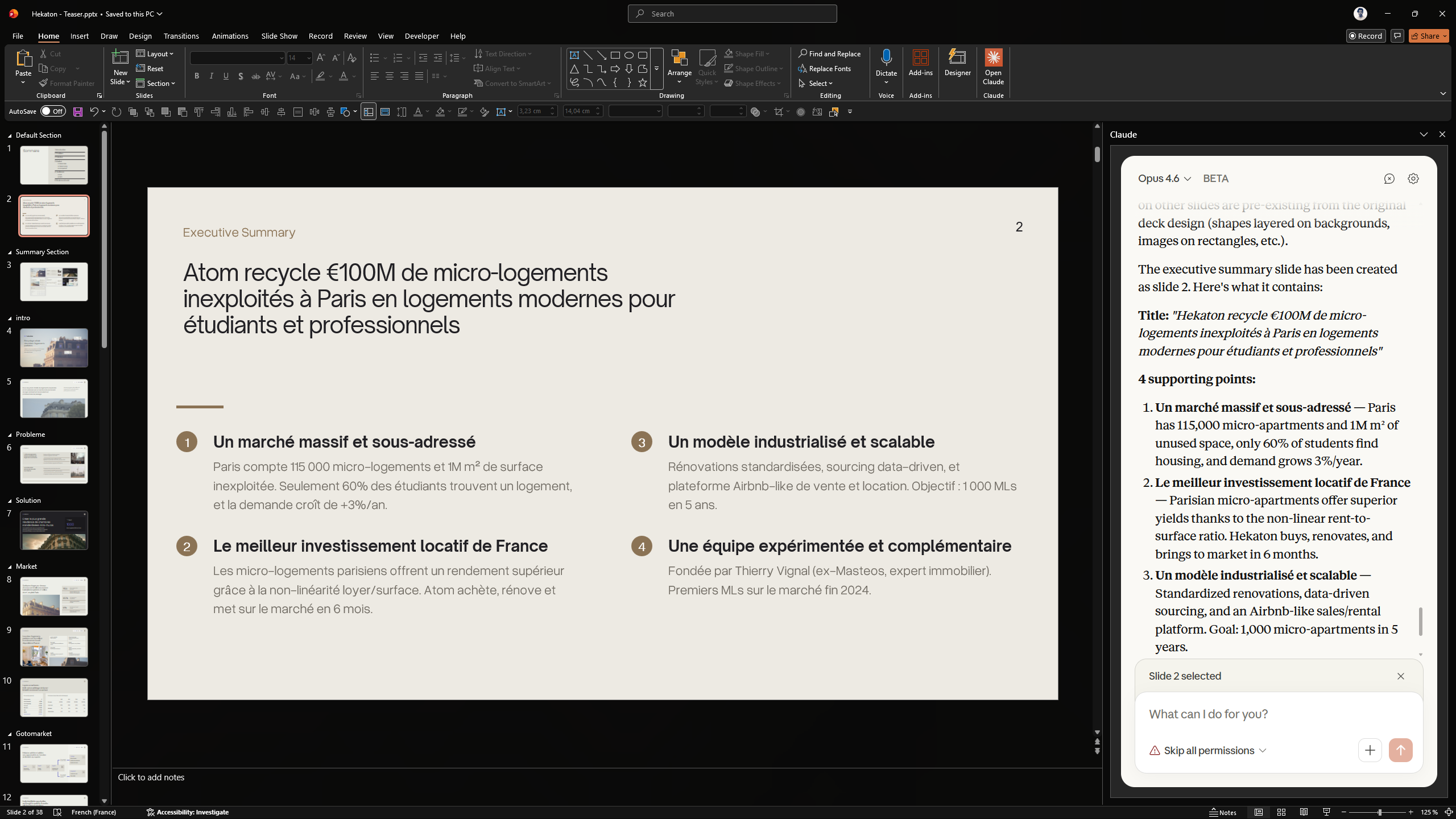
Why it works: Claude processes the full presentation context and identifies the core narrative. You still need to review the output, but it gives you a strong first draft in seconds.
4. Adapt a deck for a different audience
Presenting the same content to a technical team and then to the C-suite? This prompt reshapes the deck for executive consumption.
Adapt this deck for a C-level audience. Remove technical details, elevate strategic implications, shorten to 8 slides max, and make every title a decision-oriented statement.
Why it works: It gives Claude four clear constraints: audience, content filter, length, and title style. The result is a focused, decision-ready version of your deck. Check formatting.
5. Translate an entire deck
Translating a presentation is more than swapping words. Cultural references, tone, and corporate vocabulary all need to adapt.
Translate this entire presentation from French to English. Keep the same structure, adapt any culturally specific references, and ensure the tone is appropriate for a US corporate audience.
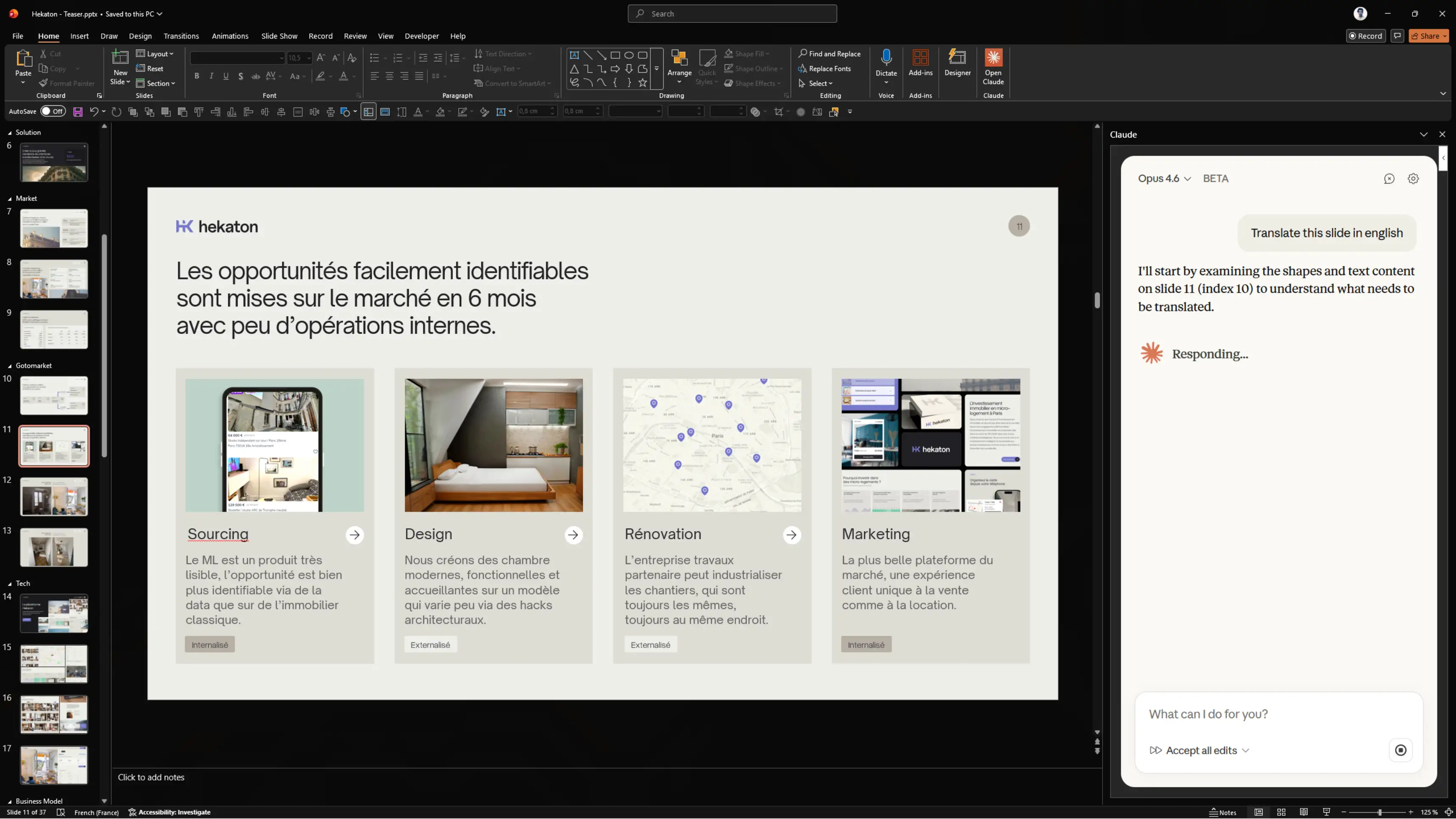
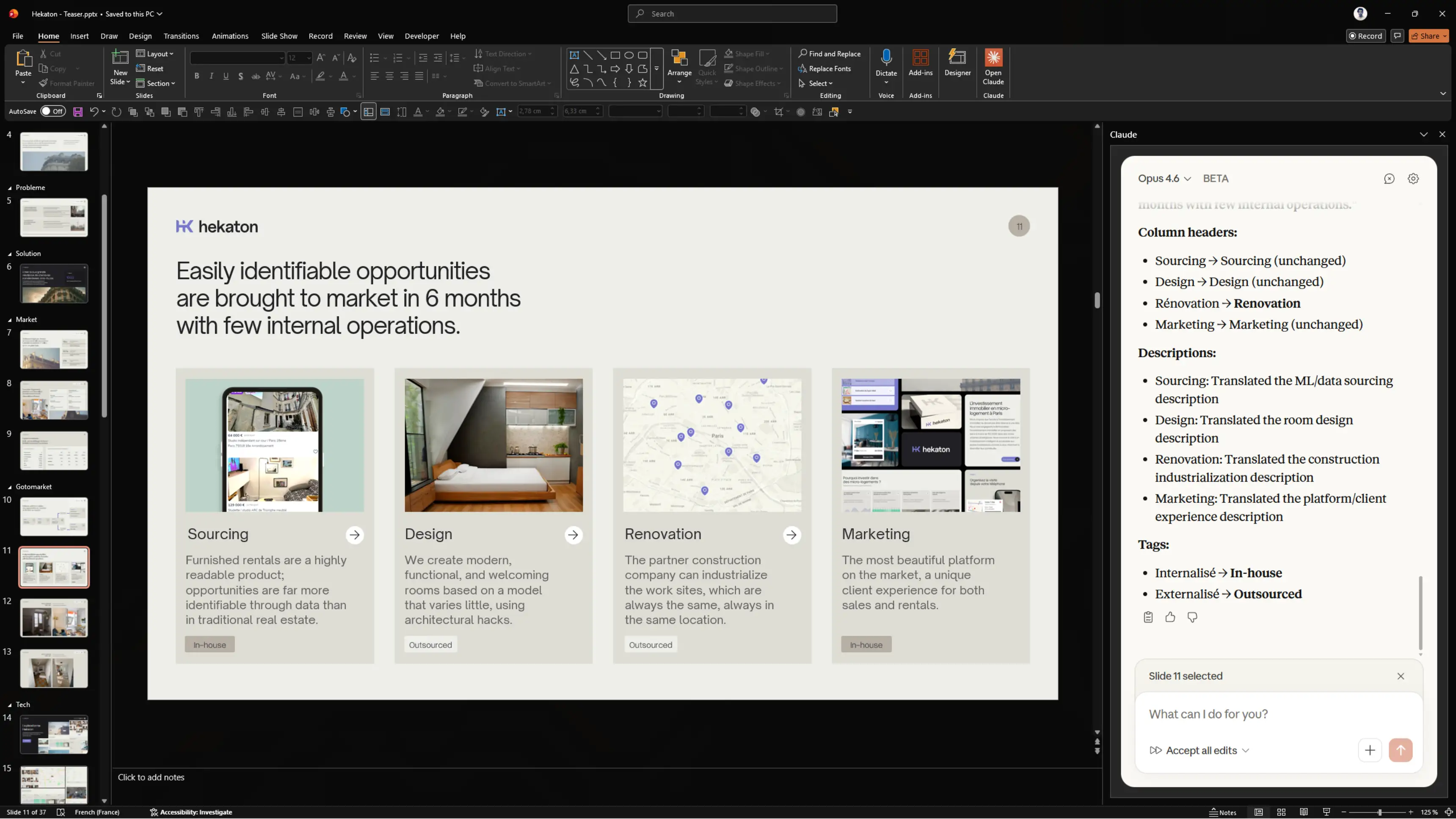
Why it works: The instruction to adapt tone and cultural references prevents a literal translation. Claude handles the full deck in one pass while preserving slide structure and formatting, good job!
5. Rewrite titles as action titles (consulting-style)
Generic slide titles like "Market Overview" tell the audience nothing. Action titles turn every slide into an argument.
Rewrite all slide titles as action titles. Each title should state an insight or recommendation, not a topic label. For example, change "Market Overview" to "The European market is growing 23% YoY, driven by SMBs."
Why it works: This is one of the highest-impact, lowest-effort improvements you can make to any deck. Claude applies the pattern consistently across all slides, saving you from rewriting each one manually.
7. Create a dynamic agenda with section dividers
Building an agenda slide and section dividers by hand is tedious, especially when the deck structure keeps changing. We were quite impressed with the layout, spacing, and formatting. Aligned with our guidelines.
Create an agenda slide that reflects the current deck structure. Then add section divider slides before each major topic with the agenda repeated and the current section highlighted.
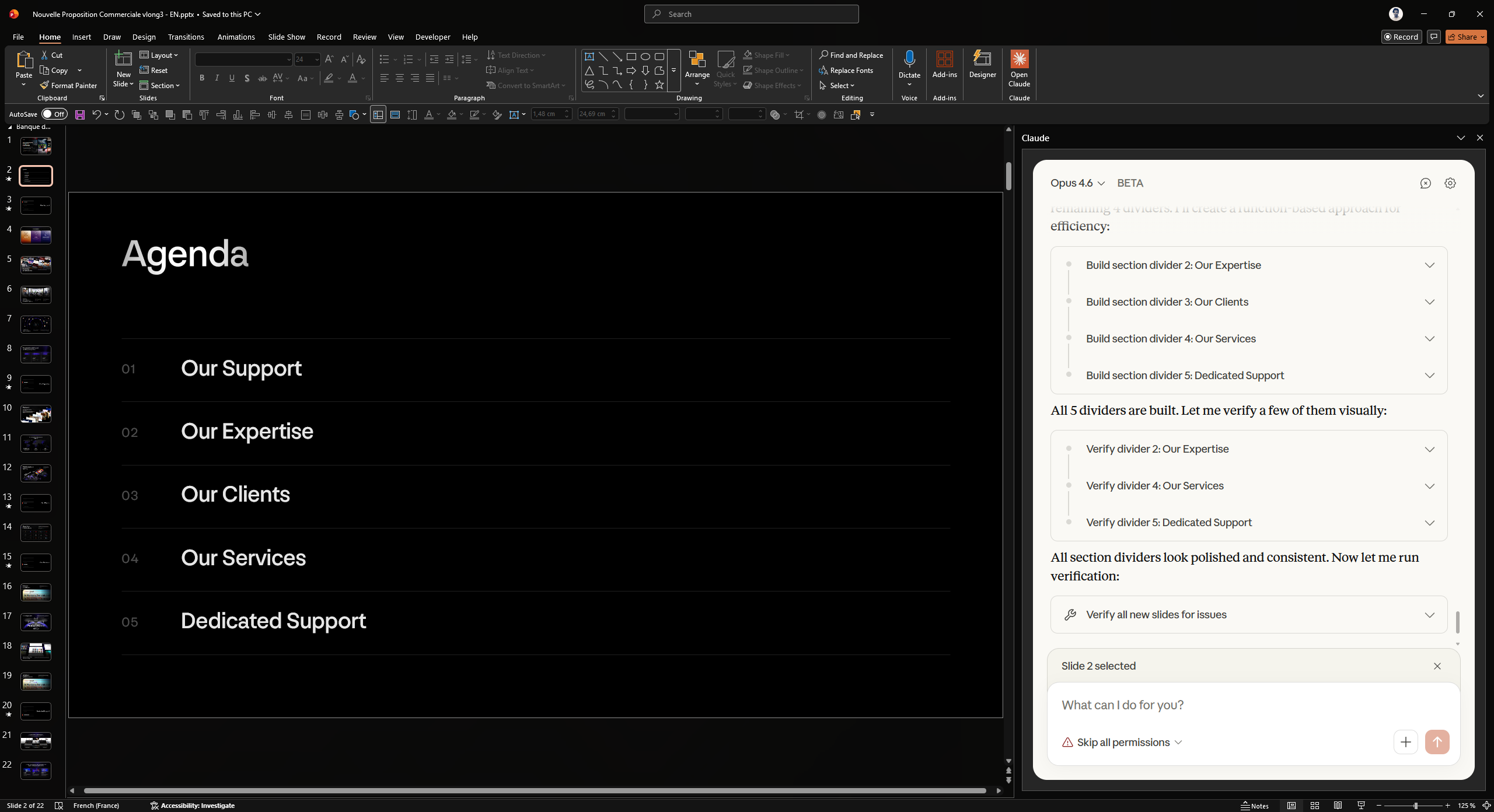
Why it works: Claude generates the agenda from the actual deck content, so it stays accurate. The highlighted current section gives your audience clear navigation throughout the presentation.
8. Build a presentation from a website
Need to present a company overview based on their website? This prompt turns a URL into a structured deck. However, design will not be aligned with the website, claude will simply crawl the website and genertate basic formatting.
Go to [URL] and analyze the page content. Create a 10-slide presentation that captures the key information: company overview, value proposition, products/services, key differentiators, and any data points or stats mentioned. Use a clean, professional layout and structure it as if you were presenting this company to a potential partner.
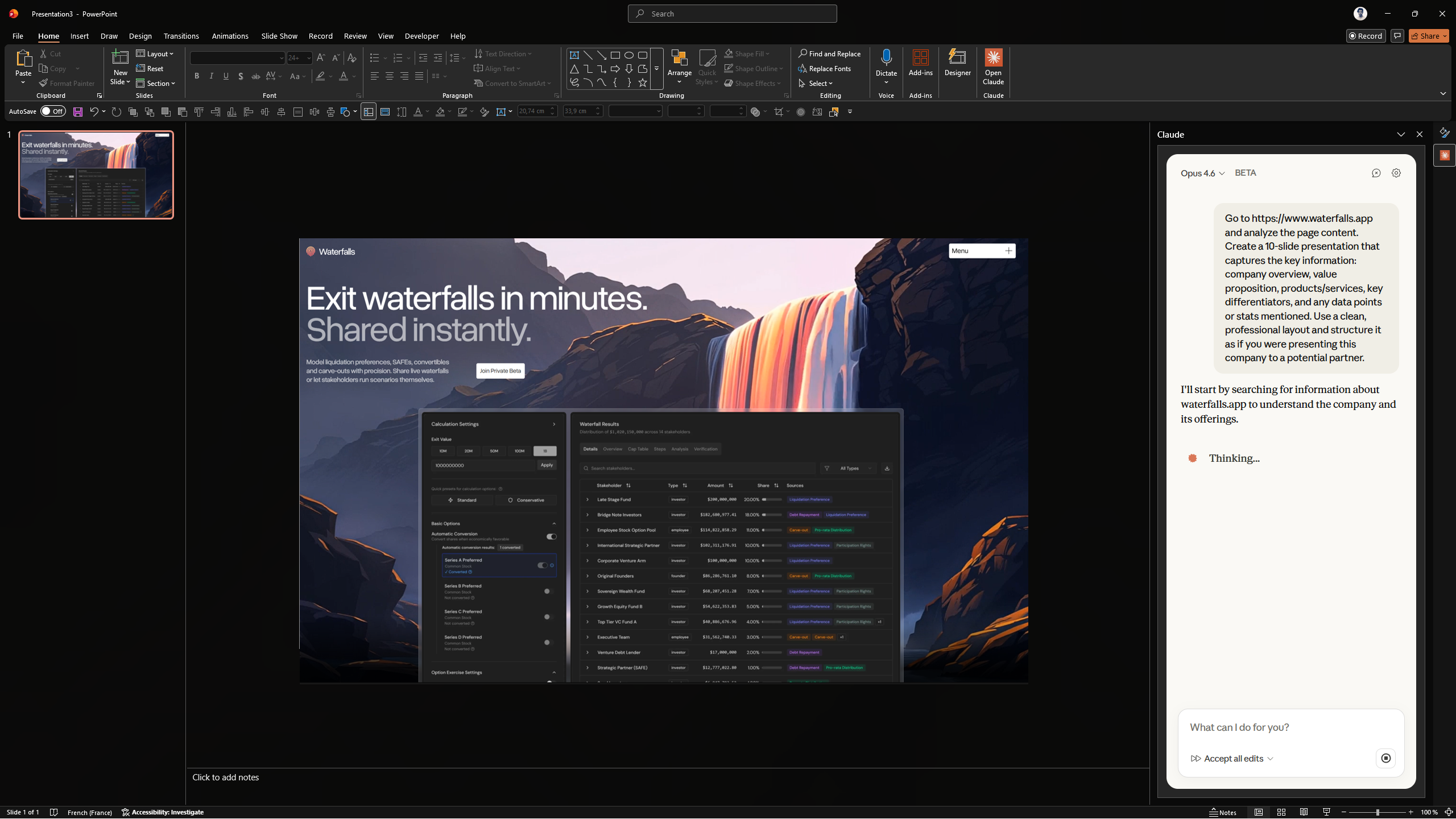
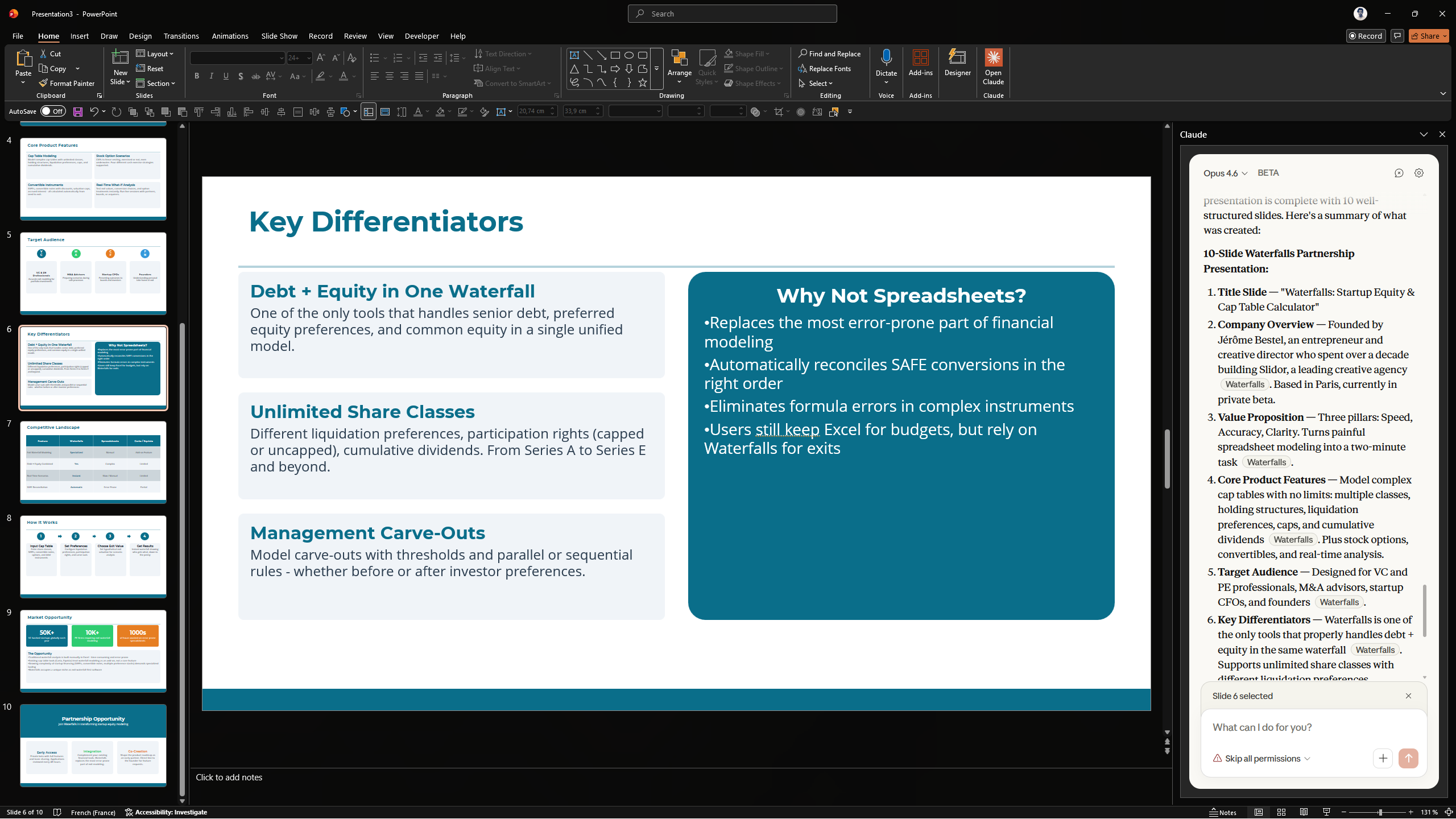
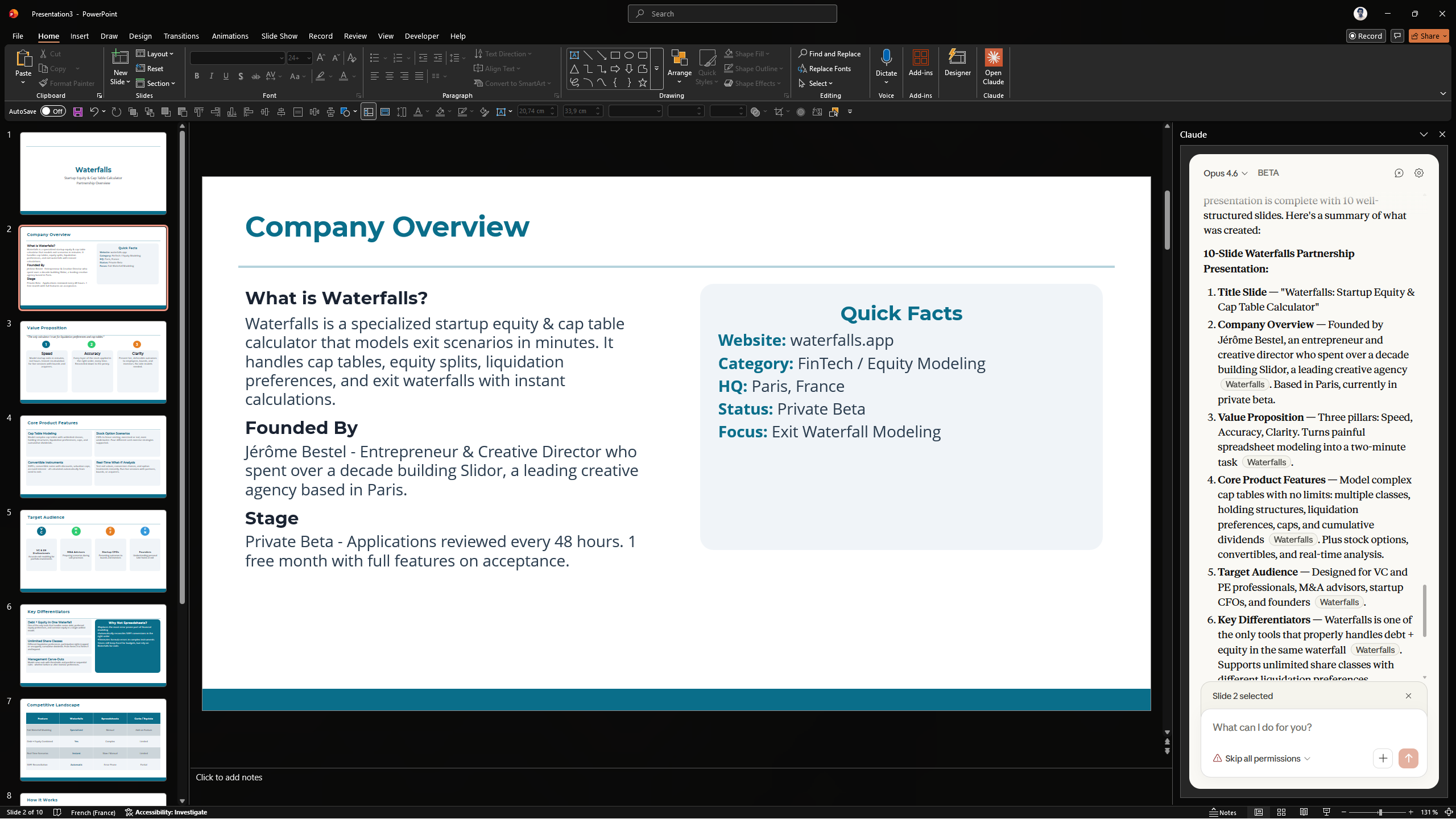
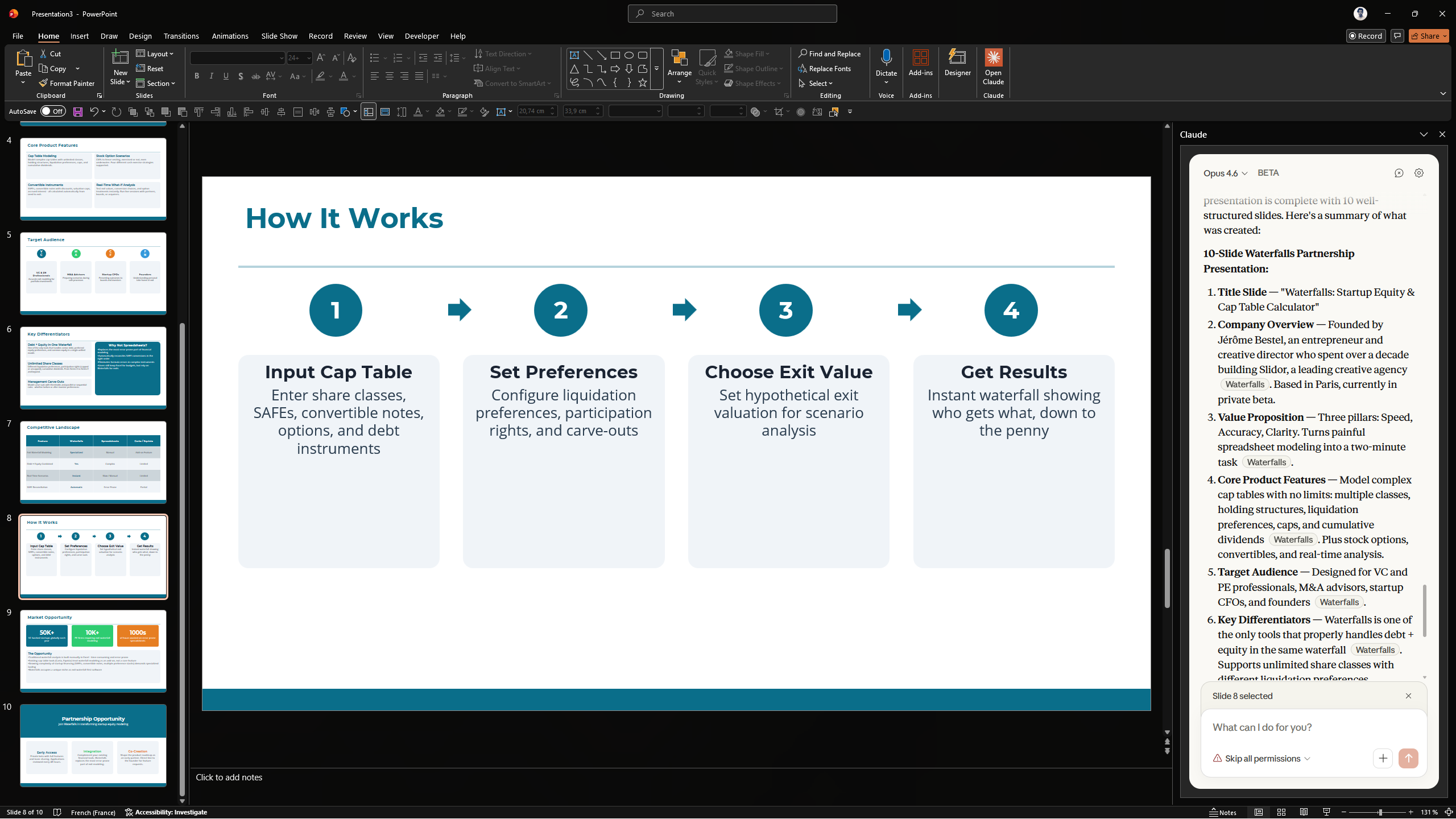
Note: Claude add-in can actually fetch the website directly from the extension.
9. Build a full deck from a brief
Need to create a pitchdeck quickly? Give Claude a structured brief and let it build the first draft.
Create a 12-slide investor pitch deck for a SaaS company in the HR tech space. Include: problem/solution framework, market sizing (TAM, SAM, SOM), business model, competitive landscape, team slide, and financial projections. Use the template already loaded in this deck.
Why it works: The prompt specifies both the content structure and the slide count, giving Claude enough direction to produce a logical narrative.
10. Generate speaker notes for every slide
You've built the deck, but now you need talking points. This prompt writes them for you.
Write detailed speaker notes for every slide in this deck. Each note should include the key message, 2-3 talking points, and a natural transition sentence to the next slide.
Why it works: Claude reads each slide's content and writes notes that match the narrative flow. The transition sentences help you deliver the presentation smoothly without memorizing every segue.
Tips to get the best results
Working with Claude in PowerPoint takes a bit of practice. Here are a few things we've learned:
- Set up your template first. Claude uses your slide master guidelines, color theme, and fonts as reference. Make sure they're properly defined before you start prompting.
- Select a slide before prompting. If you have a specific slide selected, Claude will use its design as a reference, even if it differs from the slide master. Use this intentionally.
- Give context to Opus 4.6. The most powerful model can overthink broad requests. Specify slide ranges (e.g., "from slide 4 to slide 9") and point to useful references so it doesn't overwork the task.
- Use Sonnet 4.5 for quick edits. Simple tasks like fixing typos, adjusting copy, or reformatting a single slide don't need the full power of Opus 4.6. Sonnet is faster and still gets the job done.
Final thoughts
Claude in PowerPoint is still in beta, and it shows in places. Complex templates can trip it up, and you should always review the output before sharing a deck. But the productivity gains are real. Tasks that used to take 30 minutes of manual formatting now take a single prompt and a quick review.
For anyone who builds presentations regularly, this is worth trying. It won't replace your design judgment, but it will free you up to focus on the parts that actually require it.
For teams that want AI-ready slides from the start, a custom PowerPoint template with consistent layouts makes Claude's output even better.
FAQ
Is Claude in PowerPoint free?
No. It's currently available in beta on Max, Team, and Enterprise plans. Your usage counts against your existing Claude account limits.
Which Claude model should I use in PowerPoint?
You can switch between Opus 4.6 and Sonnet 4.5. Use Opus for complex tasks like deck restructuring or narrative rewriting. Use Sonnet for quick edits like fixing copy or reformatting individual slides.
Does Claude respect my corporate template?
Not with great accuracy. Claude reads the slide master, layouts, fonts, and color scheme in your deck. It aims to maintain template compliance, but you should always review the output, especially with complex or heavily customized templates.
Can Claude access the web from the PowerPoint add-in?
Yes. The add-in can retrieve sources outside of PowerPoint and browse web pages.
Is my presentation data safe?
Claude in PowerPoint works within your existing security framework. Chat history is not saved between sessions. For sensitive or regulated data, follow your organization's data handling policies. Anthropic recommends not using the add-in with files from untrusted external sources.